How to Search eBay by Seller: Every Method That Works in 2026 (UK Guide)

Advanced Search, seller profiles, shop search boxes, URL shortcuts, the app, saved sellers and purchase history: every way to search eBay by seller on ebay.co.uk, with the exact steps for each and the honest limits of what you can see.

6 July 2026 12 min read

Quick answer

To search eBay by seller, open eBay’s Advanced Search, scroll to the Sellers section, tick “Only show items from specific sellers” and type the username. Or skip the form entirely: the address www.ebay.co.uk/sch/USERNAME/m.html jumps straight to every live listing from that seller.

eBay’s main search box has one blind spot: it searches items, not people. Type a username into it and you’ll usually get a wall of unrelated listings that happen to contain those letters. Yet searching by seller is one of the most useful moves on the site, whether you’re a buyer trying to find a trusted seller again (or combine postage on several of their items), or a UK seller doing what every serious seller does: quietly studying what the competition lists, charges and actually sells.

This guide covers every method that works on ebay.co.uk in 2026: the Advanced Search seller filter, the “seller’s other items” route through a profile, searching inside an eBay Shop, the URL shortcuts that power sellers bookmark, the equivalent steps in the eBay app, saving sellers so you never have to search twice, and how to track down a seller you bought from months ago. Each method has different strengths, so we’ll start with the map.

Every method at a glance

Diagram of four routes to search eBay by seller: an Advanced Search card, a seller profile card, a shop search card and a URL trick card, with arrows converging on a green bar labelled every live listing from that one seller.
Four routes, one destination: however you start, you end up on a page showing only that seller's listings, which you can then filter, sort and save.
How to search eBay by seller: methods compared
MethodBest forWhere you do it
Advanced Search seller filterCombining a seller with keywords, price, condition; including or excluding sellersebay.co.uk/sch/ebayadvsearch
Seller profile / other itemsBrowsing everything one seller has listed, starting from any listingTap the username on a listing
Shop search boxSearching inside a shop's own categories and shopfrontThe seller's /str/ shop page
URL shortcutsBookmarkable, repeatable seller searches/sch/USERNAME/m.html or _ssn=
eBay appThe same seller-profile route on your phoneSeller section on any listing
Saved sellersNever searching at all: one tap back to any sellerMy eBay > Saved

One distinction to hold onto before the walkthroughs: every eBay seller has a username, but only some have a shop. The username is the account ID you see next to feedback scores (like kettle_corner_uk). A shop is a paid subscription shopfront with its own name and address, and the shop name can be different from the username. Search tools that ask for a “seller” want the username, so if you only know the shop name, open the shop first and grab the username from its page.

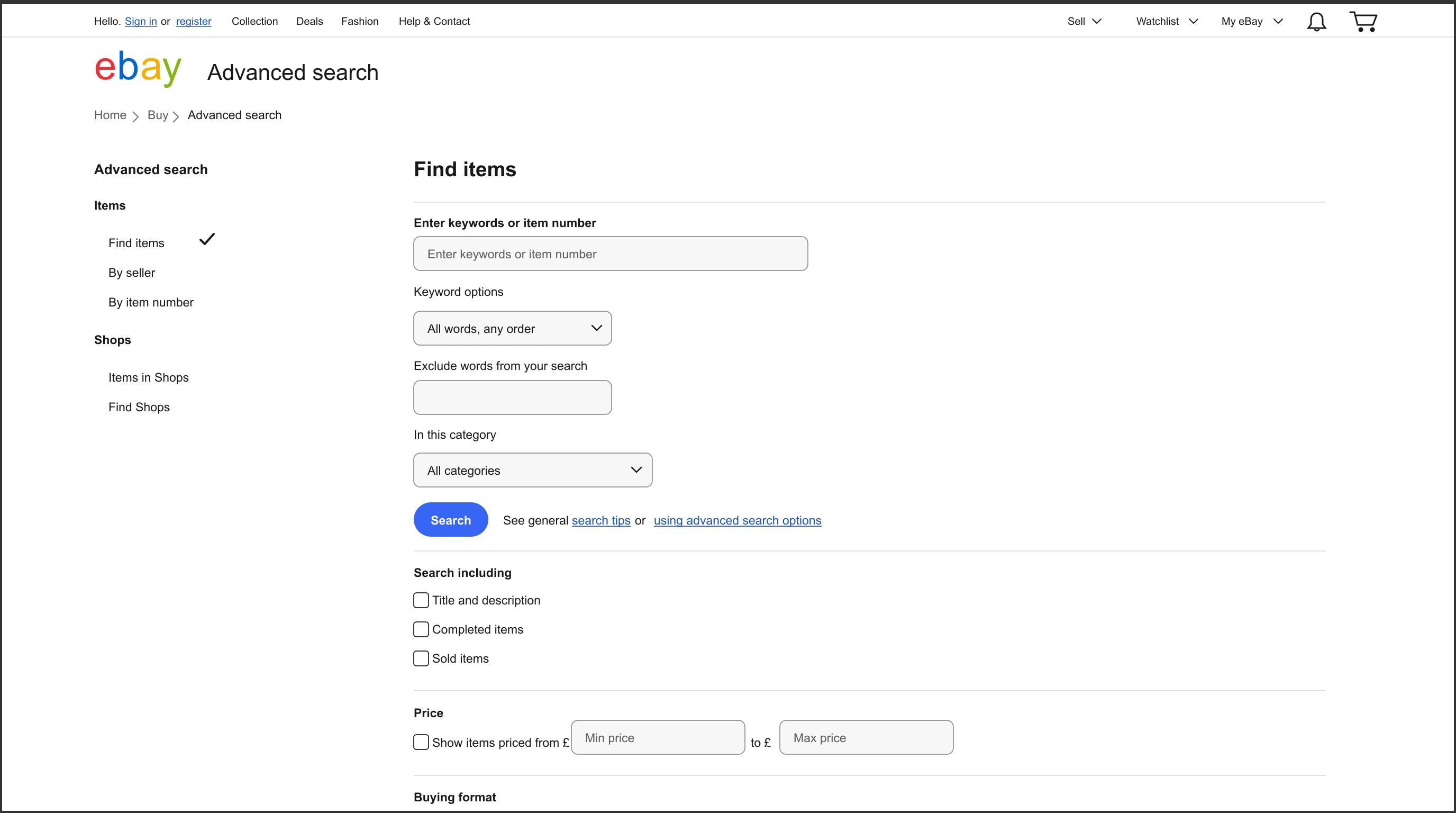
Advanced Search is the most powerful method because it’s the only one that lets you combine a seller filter with everything else eBay’s search can do: keywords, price bands, condition, buying format and location. Here’s the full walkthrough on desktop:

  1. Go to ebay.co.uk/sch/ebayadvsearch (or select the small Advanced link next to the main Search button on any eBay page).
  2. Scroll down to the Sellers section near the bottom of the form.
  3. Tick “Only show items from specific sellers” and make sure the dropdown is set to Include.
  4. Type the seller’s exact username. You can enter several usernames separated by commas (the form caps the list, currently at around ten sellers, so it’s a shortlist tool rather than a bulk one).
  5. Optionally add keywords at the top, plus any price, condition or format filters you want.
  6. Select Search. The results page shows only listings from your chosen seller(s), and the filter rail on the left still works, so you can keep narrowing from there.

The same dropdown also lets you flip the logic to Exclude: useful when one high-volume seller floods a niche search and you want to see everyone except them.

It wants the username, exactly

The seller field matches the exact eBay user ID, not a display name, not a shop name, and not a partial match. kettle_corner_uk works; Kettle Corner doesn’t. If you’re not sure of the spelling, find any listing or feedback entry from the seller and copy the username from there.

Method 2: A seller’s profile and their other items

If you’re already looking at one of the seller’s listings, you don’t need a form at all. Every listing page has a seller information section, and it’s a two-tap route to everything else they sell:

  1. On the listing, find the seller information panel (on desktop it’s usually to the right of the photos; on mobile, scroll down).
  2. Select the username or the feedback number in brackets next to it. That opens the seller’s profile.
  3. On the profile, select Items for sale (eBay also phrases this as a link to view the seller’s other items). You’ll land on a page of everything they currently have listed.
  4. Use the search box and filters on that page to search within this seller’s items: keywords, category, price, condition, newly listed first, and so on.

The profile itself is worth a look while you’re there. According to eBay’s feedback profiles help page, a member’s profile shows their overall feedback score, percentage of positive ratings, recent feedback with comments and images, detailed seller ratings, and the date they registered on eBay. For buyers that’s a trust check; for sellers sizing up a competitor, the registration date and feedback velocity tell you roughly how established they are and how fast they’re selling. If you want to go deeper on reading feedback like a professional, see our guide to eBay feedback for UK sellers.

Sellers with an eBay Shop subscription get a personalised shopfront at a /str/ address. Per eBay’s shop help pages, eBay builds that address from the shop name by removing special characters, adding hyphens between words and making everything lowercase, so a shop called “Kettle Corner UK” lives at www.ebay.co.uk/str/kettle-corner-uk.

Searching inside a shop:

  1. Open the shopfront, either from the shop link on any of the seller’s listings or by going to the /str/ address directly.
  2. Use the search box on the shop page to search only that shop’s listings.
  3. Or browse the shop’s own categories: shop owners can organise listings into custom departments, which is often faster than keyword search when you’re exploring their range rather than hunting one item.
  4. Check the About tab for the seller’s description and their postage and returns policies, which shop owners can publish for the whole shop.

No shop? No problem

A shopfront is a paid extra, so plenty of excellent sellers don’t have one. If there’s no shop link on a listing, use Method 2 (the profile route) or the URL trick below: both work for every seller, shop or not.

Method 4: URL tricks that jump straight to a seller

If you search the same sellers repeatedly, the fastest method is typing (or bookmarking) the URL directly. Three patterns cover everything:

Diagram breaking down three eBay URL patterns using the fictional seller kettle_corner_uk: /sch/kettle_corner_uk/m.html labelled as all of a member's items, /sch/i.html with _ssn=kettle_corner_uk and _nkw=teapot labelled as seller plus keywords, and /str/kettle-corner-uk labelled as a shop's front door with hyphens instead of underscores.
The three seller-search URL patterns, with a fictional seller. Swap in the real username (exactly as spelt) and the address bar becomes your fastest search tool.
  • www.ebay.co.uk/sch/USERNAME/m.html : every live listing from that member. Replace USERNAME with the exact eBay user ID. This works for all sellers, with or without a shop, and the page it opens has the full filter rail so you can narrow by keyword, price or condition.
  • www.ebay.co.uk/sch/i.html?_ssn=USERNAME&_nkw=KEYWORDS : a normal keyword search restricted to one seller. _ssn is the seller filter, _nkw is what you’d have typed in the search box. This is the URL form of “search within this seller’s items” and it’s the one to bookmark for repeat checks.
  • www.ebay.co.uk/usr/USERNAME : the seller’s profile page (feedback, registration date and the link to their items), and www.ebay.co.uk/str/SHOP-NAME : the shopfront, if they have one. Remember the shop address uses lowercase and hyphens while usernames often use underscores.

One honest caveat: these URL patterns are long-standing conventions that work on ebay.co.uk today, but they’re not a documented promise from eBay, and the exact parameters can change over time. If a bookmark ever stops working, Advanced Search is the officially supported route and always will be.

Method 5: Searching by seller in the eBay app

The eBay app doesn’t expose the full Advanced Search form, but the profile route works just as well on a phone:

  1. Open any of the seller’s listings in the app.
  2. Scroll to the seller section and tap the username. That opens their profile, with their feedback summary and items.
  3. Tap through to their items for sale, then use the search field on that screen to search within this seller’s listings.
  4. While you’re on the profile, tap Save (the heart) if you’ll want them again: saved sellers are much easier to revisit in the app than re-finding a listing.

Two app-specific tips. First, the app updates frequently and screens get rearranged, so if a button has moved, the seller’s username on any listing is always the way in. Second, if you prefer the desktop tools, every mobile browser can request the desktop site: open ebay.co.uk/sch/ebayadvsearch in Safari or Chrome on your phone and the full Advanced Search form, seller filter included, works fine.

Saving sellers so you never have to search again

If you find yourself searching for the same seller more than twice, stop searching and save them:

  1. Open the seller’s profile (any of the methods above gets you there).
  2. Select Save this seller (the heart icon on the app and on most listing pages).
  3. To get back to them later, go to My eBay > Saved and open the Sellers tab. Every saved seller is one click from their current listings.

Saving does more than bookmark. New listings from your saved sellers surface in your eBay feed on the homepage, which turns the whole thing passive: instead of you searching the seller, their new stock comes to you. Buyers use this for favourite shops; sellers quietly use it as a competitor watchlist (more on that below).

Finding a seller you bought from before

The classic version of this search: you bought something months ago, it was great, and now you want more from the same person, but you can’t remember their name. Work through these in order:

  1. Purchase history. Go to My eBay > Purchases (the Purchases tab in the app). Every order shows the item and the seller’s username; there’s a search box to filter your own purchases by item name if the list is long. eBay keeps a rolling window of past purchases visible here (currently a few years), so most “I bought it a while ago” cases end at this step.
  2. Feedback you’ve left. If the order has dropped off your purchase history, open your own feedback profile and look at the feedback you’ve left for others. Each entry names the seller and the item, and the username links straight to their profile.
  3. Your email. Search your inbox for the item name or for eBay’s order confirmation emails. The confirmation names the seller, and old emails outlive anything eBay shows on-site.
  4. A web search. If all you remember is an unusual username fragment, try a search engine query like site:ebay.co.uk/usr kettle. Profile pages are indexed, so this often surfaces the exact username, which you can then feed into any method above.

Once found, save the seller immediately (see the section above) so you never repeat the hunt.

Seeing what a seller has sold (price research)

Live listings tell you what a seller is asking. Sold listings tell you what buyers actually paid, which is the number that matters for pricing research. To see a seller’s sold items:

  1. Open the seller’s items page (Method 2 or the /sch/USERNAME/m.html URL).
  2. In the filter rail, find Show only and tick Sold items (you can also tick Completed items to include listings that ended unsold, which shows you what didn’t shift at the asking price).
  3. Sort by End date: recent first to read their sales history newest-first.

The honest limits: eBay only shows a recent window of sold results, not a seller’s full history, and sold prices don’t reveal best-offer amounts that were accepted below the displayed price in every case, or what the sale cost the seller in fees and postage. Treat it as a strong sample, not a ledger.

A worked example of how sellers use this. Suppose a rival’s sold list shows the same Emma Bridgewater mug you stock selling repeatedly at £24.99 with free postage. You currently list at £26.99 plus £2.49 postage: £29.48 all-in, £4.49 above the price the market is demonstrably paying. Matching them doesn’t have to mean copying them: at £22.50 + £2.49 postage your buyer pays the same £24.99 total, and you can decide which framing converts better for your listing. What the sold price can’t tell you is whether £24.99 leaves anything after fees and postage costs; for that, run the numbers in our free eBay fee calculator or see the full UK eBay fees guide.

Why sellers search other sellers

Everything above works for buyers, but the heaviest users of seller search are other sellers. A simple weekly routine, using only the tools in this guide:

  • Build a rival shortlist. Search your best-selling item, note the three to five sellers who keep appearing above you, and save each one. Your saved sellers list is now a competitor watchlist.
  • Check newly listed. Open each rival’s items sorted newest-first. New stock lines, price changes and title keywords they’ve started using all show up here first. (Noticed them all adding model numbers to titles? There’s a reason: product identifiers affect eBay search ranking.)
  • Check sold. Flip on the Sold items filter to see what’s actually moving and at what price, then sanity-check your own pricing against it.
  • Mind the gap between price and profit. A rival’s sold price is public; their margin isn’t, and neither is yours unless you track it. This is the part DashVue exists for: it pulls in your eBay sales and shows real net profit per item after every fee, so when you’re tempted to match a competitor’s £24.99 you can see in seconds whether that price still pays you. Plans start from £8.99/month with a 7-day free trial, no card needed.

Ten minutes a week is enough

Competitor research on eBay has diminishing returns fast. Five saved rivals, checked newest-first and sold-first once a week, will tell you 90% of what daily obsessing would, and leaves you time to actually list.

FAQ: searching eBay by seller

Can I search for a seller if I only know part of their name?

Not directly: eBay’s seller filters need the exact username and don’t support partial matches or wildcards. The workaround is a web search of eBay’s profile pages, for example site:ebay.co.uk/usr kettle in Google or Bing, or searching eBay for the kind of item they sell and scanning the seller names in the results. Once you have the exact username, every method in this guide works.

Why can’t I find a seller I know exists?

The usual causes, in order of likelihood: the username is spelt slightly differently (underscores and hyphens are easy to mix up); they currently have zero live listings, so their items page is empty even though their profile still exists; they’ve changed their username; or they trade on a different eBay site (try the same URL patterns on ebay.com). Their feedback profile at www.ebay.co.uk/usr/USERNAME is the most durable thing to check, since it exists even when nothing is listed.

Can I search by seller in the eBay app?

Yes. Tap the seller’s username on any listing to open their profile, then browse or search within their items from there. The app doesn’t offer the full Advanced Search form, but you can open the desktop Advanced Search page in your phone’s browser if you need the include/exclude seller filters.

How many sellers can I search at once?

Advanced Search accepts a comma-separated list of usernames in the seller field, capped at a small number (around ten at the time of writing). For anything bigger, run the searches separately and save the sellers, or bookmark one _ssn URL per seller.

Can I see everything a seller has ever sold?

No. The Sold items filter shows a recent window of a seller’s sales, not their full history, and eBay doesn’t publish lifetime totals. Their feedback count is the closest public proxy for volume over time, since each feedback entry represents a transaction (though not every buyer leaves feedback).

Does a seller know when I save them or view their items?

Sellers can see aggregate numbers (shop owners get traffic and follower stats in their tools) but eBay doesn’t show them who saved them or who is browsing their listings. Your watching, saving and researching is not visible to the seller by name.

How do I find a seller I bought from years ago?

Check My eBay > Purchases first; if the order is too old to appear there, look at the feedback you’ve left for others, then search your email for the order confirmation. The step-by-step section above covers all four routes.

Sources

eBay’s page layouts, URL conventions and app screens change over time. Everything here reflects ebay.co.uk as of July 2026; if a step looks different, the seller’s username on any listing is always the reliable way in, and eBay’s own help pages are the final word.

ShareXLinkedIn