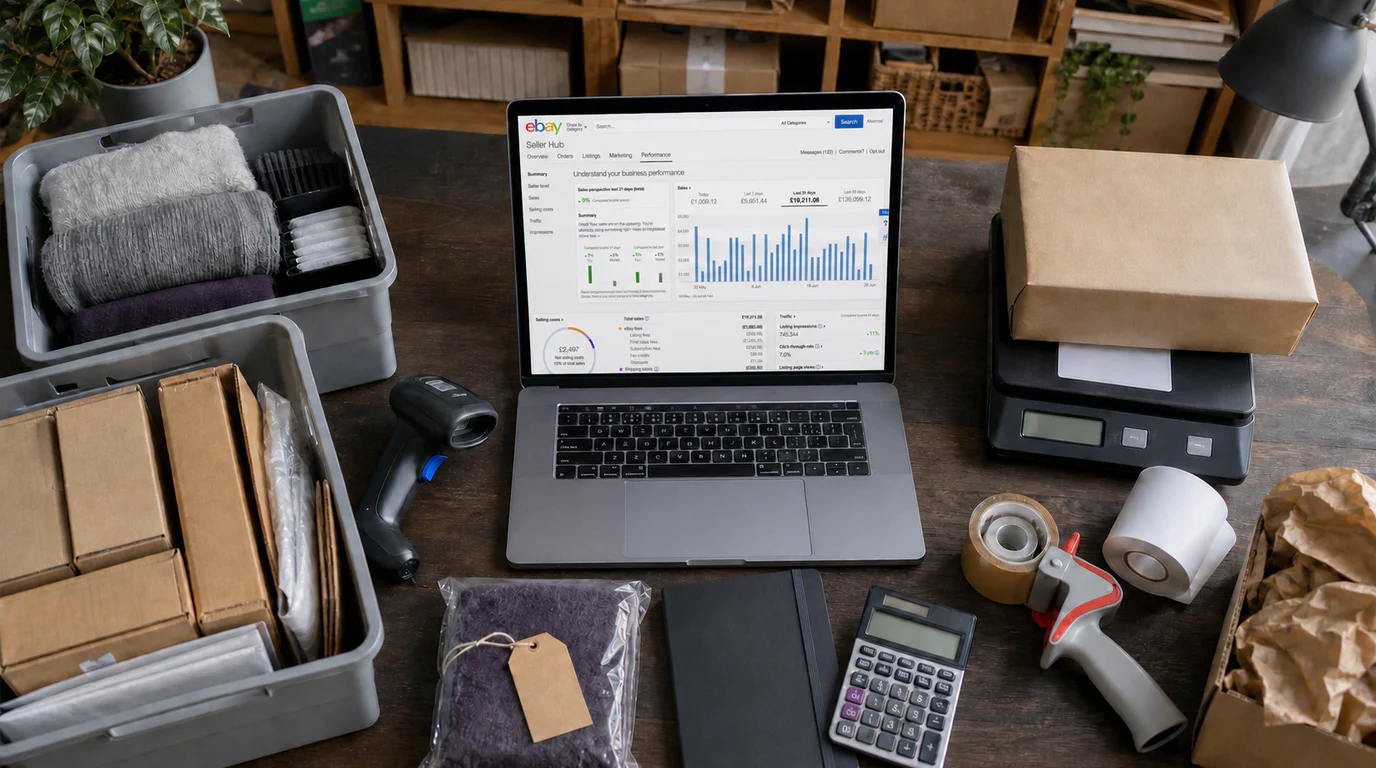
eBay Seller Hub: The Complete UK Guide to Every Tab (2026)

Overview, Orders, Listings, Marketing, Advertising, Shop, Performance, Research, Payments and Reports: what every eBay Seller Hub tab does, how to pull a pick list, run a sales or traffic report, and when to use Seller Hub instead of My eBay or the app.

6 July 2026 15 min read

Quick answer

eBay Seller Hub is the free dashboard where you run your entire eBay business: orders, listings, marketing, sales and traffic data, product research, bulk reports and payouts, all in one place. On eBay UK you’ll find it at ebay.co.uk/sh/ovw once you’ve made at least one sale. It replaces most of the old My eBay Selling pages and adds far more data on top.

If you sell on eBay UK, Seller Hub is where you’ll spend most of your admin time: printing Royal Mail labels on a Sunday night, checking why this month’s sales dipped, pulling a pick list before a car-boot-sized dispatch run. The trouble is that eBay spreads the documentation across a dozen help pages, so most sellers use two tabs and never discover the rest. This guide walks through every Seller Hub tab, the workflows that matter (pick lists, sales reports, the traffic report), how Seller Hub differs from My eBay and the mobile app, and the honest limits of what it can tell you. Everything here is grounded in eBay UK’s own Seller Hub help pages, with links to the source throughout.

What is eBay Seller Hub?

eBay describes Seller Hub as “the central place for managing your eBay business”: it’s free to use and consolidates all of eBay’s listing, reporting and order management tools into one location, along with data and recommendations to help you grow your sales. In practice it’s a tabbed dashboard that sits on top of your selling account. Nothing in it costs extra, although a few features inside it (the Marketing tab, Sourcing insights, the Shop tab) only unlock if you’re a business seller with an eBay Shop subscription.

Getting access is simple, but there are two eligibility quirks worth knowing:

  1. You need at least one sale. eBay’s help page states you’ll need to have had at least one sale to use Seller Hub. Brand-new accounts that haven’t sold anything yet see the standard selling pages instead.
  2. Business sellers are opted in automatically. eBay’s Seller Hub Reports page confirms business sellers get Seller Hub by default, while private sellers just need that first sale.

To open it, sign in at ebay.co.uk and go to Selling (or head straight to ebay.co.uk/sh/ovw). You’ll land on the Overview page with the full tab row across the top.

The Seller Hub tabs at a glance

eBay UK’s Seller Hub help page lists ten tabs. Here’s the one-line version of each, before we go deeper:

Illustrative sketch of the eBay Seller Hub dashboard: a row of ten tab pills (Overview, Orders, Listings, Marketing, Advertising, Shop, Performance, Research, Payments, Reports) above simplified cards for tasks, a sales line chart, awaiting-postage orders and a payouts bar chart.
The Seller Hub layout, sketched: ten tabs across the top, with the Overview page summarising tasks, orders, sales and payouts. (Illustration, not a real eBay screenshot.)
Every Seller Hub tab and what it does (eBay UK, 2026)
TabWhat it doesWho sees it
OverviewSummary of your Tasks, Orders, Listings and Feedback, plus shortcuts to frequent actionsAll sellers
OrdersAct on orders: print postage labels, upload tracking, review past orders, set returns rulesAll sellers
ListingsCreate and manage listings individually or in bulk; listing templates; business policiesAll sellers
MarketingBrand-building and promotion tools, including Discounts Manager offersBusiness sellers with an eBay Shop subscription
AdvertisingCreate and manage advertising campaigns (Promoted Listings and related formats)Eligible sellers
ShopManage your eBay Shop: categories, newsletter, layout, subscription, Shop traffic statsShop subscribers
PerformanceSales, selling costs as a percentage of sales, traffic and buyer traffic sources, seller levelAll sellers
ResearchProduct research on real eBay sales data, plus sourcing, pricing and restocking adviceAll sellers (Sourcing insights needs a Shop)
PaymentsTrack payouts, transactions, fees; download financial statements and tax invoicesAll sellers
ReportsFile-based (CSV/XLSX) bulk reports and templates for listing, editing and fulfilmentAll sellers

A useful mental model: the first six tabs are about doing (fulfilling, listing, promoting), and the last four are about knowing (performance, research, money, data exports). Most day-to-day selling happens in Orders and Listings; most good decisions come from Performance, Research and Payments.

Overview tab: your daily dashboard

The Overview page is what loads when you open Seller Hub. Per eBay’s help page, it gives you a summary view of your Tasks, Orders, Listings and Feedback, along with access to frequently used actions and selling tools. Think of it as a morning triage screen:

  • Tasks flags things that need action, such as orders awaiting dispatch or messages awaiting replies.
  • Orders shows counts by state so you can jump straight to what needs posting.
  • Listings summarises active listings and drafts.
  • Feedback surfaces recent ratings so nothing negative sits unnoticed.

Customising the Overview

The Overview is built from modules, and eBay lets you tailor which ones appear and where: look for the customise control (typically at the top right of the Overview page) to reorder, add or hide modules so the numbers you check daily sit at the top. eBay adjusts this page’s layout and module set from time to time, so if an option described here has moved, the official Seller Hub help page is the up-to-date reference. One honest caveat: you can rearrange what the Overview shows, but you can’t change what it measures, so treat it as a to-do list rather than an analytics tool. The analytics live in Performance.

Orders tab: dispatch, tracking & pick lists

The Orders tab is where sales become parcels. eBay’s help page describes it as the place to take action on orders, including printing postage labels and uploading tracking, review past orders, and set up rules for managing returns. Some specifics worth knowing:

  • Two years of history. You can find your sold items in Seller Hub (or My eBay) going back up to the last 2 years.
  • Search by buyer, status or time frame. Order statuses include awaiting payment, awaiting postage, paid and posted, and awaiting feedback.
  • 12-digit order numbers. Every completed sale gets one. It doesn’t replace the item number; it references the whole order, and the Orders tab is the main place to find it.

Workflow: pulling a pick list for a dispatch run

eBay doesn’t hand you a document labelled “pick list”, but the orders download report does the job better than one. It’s a CSV containing all the data on the Manage orders page and more, including item title, custom label (your SKU), variation details, quantity, the buyer’s postage address and the post-by date. Here’s the routine:

  1. Go to Orders in Seller Hub and filter to Awaiting postage.
  2. Select Download report at the top right of the orders table. This downloads every order in your current results set, so filter first. (To grab only specific orders, tick their boxes and choose More > Download selected.)
  3. Open the CSV and sort by the Custom label column. If your SKUs encode a shelf location (say A3-TSHIRT-RED-M for bay A3), the sort turns the file into a walk-the-shelves pick route.
  4. Pick, pack, then head back to Orders to print labels and confirm dispatch, or upload tracking numbers if you bought postage elsewhere.

A worked example: it’s Sunday evening and you have 14 orders awaiting postage. You filter, download, and the report shows 11 single-item orders and 3 multi-item ones. Sorted by custom label, you pick all 18 items in one pass, pack them against the report’s quantity and variation columns (no more posting the medium when the buyer ordered a large), print labels in one batch, and book a Royal Mail collection for Monday. Total admin: about 20 minutes instead of an hour of tab-switching.

The report includes eBay-collected tax

The orders report also includes a field showing how much tax eBay collected and remitted for each transaction, which matters if you sell internationally (IOSS/OSS for the EU, for instance). Keep the CSVs: they’re useful raw records at bookkeeping time.

Listings tab: create, edit & templates

The Listings tab is where you create and manage listings, individually or in bulk, manage listing templates, and create business policy settings (your reusable postage, payment and returns rules). Day to day you’ll use it to:

  • Create new listings and drafts with the full listing form, including item specifics and product identifiers like the MPN and EAN.
  • Edit, end or relist active listings, one at a time or via bulk edit. (If you need to end a listing early, there are rules and sometimes fees involved; our guide to cancelling an eBay listing covers them.)
  • Build listing templates. eBay lets you create up to 50 reusable templates in Seller Hub, so a new listing for a product line you sell repeatedly starts 90% pre-filled.

For very large inventories the Listings tab’s bulk editor works fine into the hundreds, but once you’re managing thousands of SKUs, the Reports tab (below) and eBay’s file-based tools are built for the job.

Marketing, Advertising & Shop tabs

These three tabs cluster together because they’re all about demand rather than fulfilment, and because access differs by account type.

Marketing tab

Per eBay’s help page, the Marketing tab’s tools to build your brand, attract more buyers and sell more per visit are exclusive to business sellers with an eBay Shop subscription. The headline tool inside is Discounts Manager, which offers four discount types: order discounts, multi-buy offers, coupons, and sale events. If you’re a private seller, this tab is the main thing you’re missing; whether a Shop subscription pays for itself depends on your volume, and our free eBay Shop tier calculator does that maths for you.

Advertising tab

The Advertising tab is where you create and manage advertising campaigns to reach more buyers. eBay’s advertising line-up currently spans Promoted Listings plus shop-level and off-eBay formats, each with its own eligibility and billing model (some pay-per-click, the classic Promoted Listings general strategy pay-per-sale). Ad fees come straight off your margin, so before scaling a campaign it’s worth checking what your listings actually net after fees; our free eBay fee calculator includes ad-rate inputs.

Shop tab

If you subscribe to an eBay Shop, the Shop tab is where you manage all aspects of it: shop categories, your newsletter (a business-seller feature), shop layout and your subscription itself. You can also review your Shop’s traffic stats and get tips on optimising its performance.

Performance tab: sales & traffic reports

Performance is the tab that turns Seller Hub from an admin tool into a business tool. eBay’s help page says it provides detailed information on sales, selling costs as a percentage of sales, traffic, buyer traffic source and more, and you can select the data on the page to drill into in-depth charts. It’s also where you monitor your seller level.

Workflow: generating a sales and selling-costs report

The steps, straight from eBay’s documentation:

  1. Open the Sales section of the Performance tab.
  2. Use the dropdowns to choose a time period (today, this week, this month, or this quarter) and a comparison period (month over month or year over year).
  3. Select Generate Report.

The All sales section breaks down item sales and postage, and shows what percentage of total sales came via Promoted Listings. The Selling costs section shows the amount and percentage of your selling cost from eBay fees and postage labels, with an expandable detailed breakdown of the fees. For per-listing insight, select Download listings sales report.

Worked example: your quarterly report shows all sales of £6,840 and selling costs of £1,190, which Seller Hub reports as roughly 17.4% of sales. Expanding the eBay fees arrow shows most of the fees are final value fees, plus £95 of ad fees; the remaining £180 of selling cost is postage labels, which the report counts separately from eBay fees. That 17.4% is your real, blended cost of selling, and watching it quarter over quarter tells you quickly if a fee change or an ad-rate creep is eating your margin. (For what each fee actually is, see our complete UK eBay fees guide.)

Workflow: reading the traffic report

The Traffic section of the Performance tab is eBay’s answer to “are people even seeing my listings?”. It covers the traffic going to your listings, including page views, and where your buyers come from (the buyer traffic source data). The practical reading order:

  1. Views trend first. A sales dip with flat views is a conversion problem (price, photos, competition). A sales dip with falling views is a visibility problem (search placement, seasonality).
  2. Then traffic sources. If most buyers arrive from eBay search, title and item-specifics quality is your lever; if external sources matter, your off-eBay presence is working.
  3. Then per-listing views to spot the listings getting attention but no sales; those are your first candidates for a price tweak or better photos.

One honest caveat: Seller Hub’s traffic data tells you what happened, not why, and eBay refines which metrics appear here over time, so treat exact metric names as movable.

What Performance doesn't show: profit

The Performance tab reports sales and eBay-side costs. It doesn’t know what you paid for stock, your packaging costs, or postage bought outside eBay, so it can’t show net profit per item. That gap is exactly what DashVue’s eBay P&L reports fill: they combine eBay’s data with your cost of goods to show true profit per sale, from £8.99/month with a 7-day free trial and no card required.

Research tab: product research on real sales data

The Research tab hosts eBay’s Product research tool (many sellers still know it by its old Terapeak branding). It gives you access to the last 3 years of eBay sales data for millions of items, including:

  • Sales trends and average sold prices
  • Sold price range
  • Average postage costs and how many listings offered free postage
  • Sell-through rate (for searches of items sold within the last 90 days)
  • The total number of sellers who sold that item, and the selling format used

Two things make it better than browsing sold listings. First, completed-listings search only covers the previous 90 days, while Product research goes back 3 years, long enough to see seasonality. Second, its results include the actual price paid even when a Best Offer was accepted, whereas the public sold view can hide that.

The filters are genuinely deep: date ranges from one day to 3 years, plus MPN, UPC, ePID, EAN or ISBN codes, price ranges, listing formats, item conditions, buyer and seller locations, and marketplace. The search logic supports exclusions and alternatives too: iPhone XS Max 64GB -cover excludes listings with “cover” in the title, and OR lets you group variants in one search.

Illustrative workflow: before listing a pair of Levi’s 501s, search the exact model and size, filter to Used condition and UK seller location, and set the range to the last 12 months. Suppose the tool shows an average sold price around £25 with a healthy sell-through and most sales on fixed price: you now have a defensible price and format before you’ve written a word of the listing. (Those numbers are an example of how to read the tool, not live market data; always run your own search.)

Business sellers with an eBay Shop also get Sourcing insights at no extra cost: demand-versus-inventory views by category, useful for deciding what to buy next rather than what to charge.

Reports tab: bulk uploads & scheduled downloads

The Reports tab is eBay’s file-based power tool, aimed at high-volume sellers who would rather work in a spreadsheet than a web form. Using templates, you can create and upload files to add, revise, relist and end listings; it also handles order fulfilment, marking items dispatched, managing feedback and fixing listing errors in bulk.

The core loop looks like this:

  1. In the Upload section, select Get template, choose Listings or Orders as the source and pick a template type (create new listings, edit price and quantity, add order tracking, and so on), then download it.
  2. Fill the template in Excel or any CSV editor. If you use the Create Drafts template you can leave the image URL column blank and add photos later, which sidesteps the image hosting requirement.
  3. Upload it back (.xlsx or .csv). Processing usually takes less than 15 minutes, and you get a downloadable results report showing every action taken.
  4. In Download, pull order or listing reports for any date range from 1 to 90 days; in Schedule, set recurring order reports at hourly, daily, weekly or monthly frequency.

A scheduled “Awaiting postage” report every morning at 7am is the closest thing eBay offers to an automated daily pick list. And if you run SKU-based inventory at serious scale, eBay’s Merchant Integration Platform (linked from the same tooling) can upload over 50,000 SKUs in under 30 minutes via CSV or XML.

Payments tab: payouts, transactions & your eBay finances

Searching for the eBay finances tab? On ebay.co.uk this is the Payments tab: it tracks the money you earn from the moment a buyer’s order is confirmed to when eBay initiates your payout. It has four sections:

  • Summary: your funds at a glance, including your last payout and when the next one is scheduled. This is also where you change where or when you get paid. Business sellers can switch between daily, weekly, biweekly or monthly payouts, and anyone on a weekly, biweekly or monthly schedule can request available funds at any time by selecting withdraw.
  • All transactions: every sale, refund, claim, dispute, hold, postage label, transfer and payout, filterable by status, type, date or order ID.
  • Payouts: each payout’s total, initiation date, destination account and transaction count; select a payout ID for the per-transaction breakdown including fees.
  • Reports: download your transaction report, payout report, tax invoice and financial statement. These are the documents your accountant actually wants.

Transaction statuses differ by account type. Business sellers see Available funds, Processing, On hold, Completed, Open and Released; private sellers see an eBay balance plus Pending, Completed and Released. Two details worth knowing: funds shown as Processing mean the buyer has paid and you can send the item as long as the order is confirmed, and pending funds can still be used to buy postage labels and issue refunds before they clear.

If your funds are on hold, eBay shows a reason and, where possible, an estimated release date, with guidance on resolving the issue. Holds have several causes (new-seller verification, open claims, performance issues), so the reason text matters more than the status itself.

Seller Hub vs My eBay: which should you use?

Before Seller Hub, everything lived in the Selling section of My eBay, and the older pages still exist. eBay encourages all sellers to use Seller Hub but confirms you can still view transactions, update your payout schedule, change where you get paid and download your monthly financial statement from Payments in My eBay. Here’s the honest comparison:

Seller Hub vs My eBay Selling (eBay UK, 2026)
FeatureSeller HubMy eBay Selling
CostFreeFree
AccessNeeds at least one sale (business sellers opted in automatically)Every account
Order historyUp to 2 years, searchable by buyer, status and time frameUp to 2 years via Selling > Orders
12-digit order numbersShown on the Orders tabeBay says it is still working on adding them
Sales & traffic analyticsFull Performance tab (sales, costs, traffic, sources)Not available
Product researchResearch tab, 3 years of sold dataNot available
Bulk CSV toolsReports tab (templates, scheduled reports)Not available
Payouts & statementsPayments tabPayments in My eBay (statuses are the same in both)

The short version: if you sell more than occasionally, use Seller Hub for everything and treat My eBay as the fallback. There’s no feature it has that Seller Hub lacks, and the analytics, research and bulk tooling only exist in the Hub.

Seller Hub & the eBay app: what’s different on mobile

The eBay app (iOS and Android) doesn’t reproduce the full tabbed Seller Hub; it gives you a Selling area with the essentials. Per eBay’s help page, the app lets you create, edit and monitor listings, relist items and provide tracking information on the go. It also has a few tricks the desktop doesn’t:

  • Barcode scanning: scan an item’s barcode and the app pulls product details from eBay’s catalogue automatically.
  • Camera-to-listing photos: snap photos and add them straight to the listing.
  • Cross-device sync: start a listing in the app and finish it on your laptop, or vice versa.
  • Push notifications for messages, offers and sales, configured in the app’s settings on iOS and Android.

What stays desktop-first: the Reports tab’s CSV workflow, the Performance tab’s drill-down charts, and Product research’s full filter set are all built around Seller Hub in a browser. A sensible split is app for photographing, listing and answering messages; browser Seller Hub for dispatch runs, analytics and anything involving a spreadsheet.

One mobile-specific listing detail: on phones eBay shows buyers a shortened mobile description summary, auto-generated from your full description, and only descriptions under 800 characters in basic HTML or plain text display in full. Front-load the details that sell the item.

Diagram mapping eight everyday eBay seller jobs to Seller Hub tabs: print a postage label and upload tracking numbers point to Orders; edit, end or relist a listing points to Listings; bulk edit hundreds of listings points to Reports; see sales, fees and traffic data points to Performance; check your next payout points to Payments; research sold prices points to Research; run a sale event or coupon points to Marketing, with a footnote that Marketing needs a business account with an eBay Shop subscription.
Cheat sheet: the Seller Hub tab for eight everyday seller jobs. Save it for the next time you're hunting through menus.

eBay Seller Hub: frequently asked questions

Is eBay Seller Hub free?

Yes. eBay’s help page states Seller Hub is free to use. Some tools that appear inside it are gated behind paid subscriptions, though: the Marketing tab and Sourcing insights need a business account with an eBay Shop subscription.

Why can’t I see Seller Hub on my account?

The usual reason is that you haven’t sold anything yet: eBay requires at least one sale before Seller Hub activates for private sellers. Business sellers are opted in automatically. Once eligible, sign in and go to Selling, or visit ebay.co.uk/sh/ovw directly.

Where is the eBay traffic report?

In the Performance tab. Open Seller Hub, select Performance, then the Traffic section. It covers the traffic going to your listings, including page views and buyer traffic sources, with drill-down charts.

Where do I find pick-list information for my orders?

Use the Orders tab: filter to Awaiting postage, then select Download report at the top right of the table. The CSV includes item title, custom label (SKU), variation details, quantity and addresses, everything a pick list needs. For a recurring version, schedule an automatic orders report from the Reports tab.

Is Product research the same as Terapeak?

Effectively, yes. The product research tool in the Research tab was previously branded Terapeak; eBay UK’s help now simply calls it Product research. It offers 3 years of real eBay sales data with filtering by category, condition, identifier codes, locations and more.

Can my staff use Seller Hub without my password?

eBay’s Team access feature lets you delegate access to your account so other members can perform certain functions on your behalf without exposing your password; eBay’s Product research FAQ confirms it works with the Research tab. Check eBay’s Team access help page for the current scope of what can be delegated.

What’s the difference between Seller Hub and the Seller Centre?

Seller Hub is the working dashboard inside your account. The Seller Centre is eBay’s educational site about selling: guides, policy explainers and programme details. eBay’s own help page points to the Seller Centre for further reading about Seller Hub.

How far back does Seller Hub order history go?

Up to the last 2 years, in both Seller Hub’s Orders tab and My eBay’s Orders section. If you need records older than that (HMRC record-keeping runs longer), download and archive your orders reports and financial statements regularly rather than relying on eBay to store them.

Sources

eBay updates Seller Hub’s layout, tab names and metrics over time and by account type, so if something here doesn’t match your screen, the linked help pages are the canonical reference.

ShareXLinkedIn